How to import patient records into the dental management software
Easily import patient records into the management system: use CSV or Excel, map the columns, test a sample, and start the secure import.

How to import patient records into the dental practice management software
Yes, you can import patient records in bulk: prepare a CSV or Excel file with the standard fields (first name, last name, tax code, contact details), map the columns in the management software, test the import on a small subset of records, and then run the final import. If the volumes are high or the data comes from different systems, the fastest way remains the assisted migration offered free of charge by some providers.
In short:
If patient volumes are high or data comes from different systems, it is advisable to rely on the free assisted migration offered by specialized providers.
Data cleaning is fundamental: eliminating duplicates and standardizing fields like phone and dates reduces the risk of errors and blocks during import.
It is preferable to export to CSV with UTF-8 encoding, using the semicolon as a separator, and verify that fields are sorted correctly according to the management software template.
Before the final import, you must always run a test on a subset of records to identify and correct any mapping or formatting errors.
In the presence of large volumes or complex structures, contacting the provider's support avoids errors and allows you to plan a migration without business interruptions.
Treatbasetreatbase.comMigrate records without complicationsTreatbase simplifies data migration and allows dental practices to abandon their previous management software at no additional cost.Discover Treatbase
Table of Contents
Data preparation: what fields are needed and how to clean the patient database
File formats and structure: how to create a compatible file
Field mapping and testing: how to connect columns to the management software
How to import records into dental management software: a step-by-step procedure
Post-import verification and correction of the most common errors
When it is better to request assisted migration instead of doing it yourself
Free migration with Treatbase: import records without risks
Sources
Frequently Asked Questions
Data preparation: what fields are needed and how to clean the patient database
Before touching any import function, the file must be clean. A dirty database generates duplicates, blocks the import, or, worse, completes it with incorrect data that then remains in the management software for years.
The minimum fields that almost all software require are first name, last name, tax code, and date of birth. Highly recommended fields complete the patient file and are useful for communications and billing:
First name and last name (separated into two columns, not joined)
Tax code, uppercase format without spaces
Date of birth in a consistent format (preferably DD/MM/YYYY)
Phone number, with international prefix if present
Email, verified for the presence of the "@"
Full address (street, city, province, ZIP code)
Health card number, if the management software includes it
For duplicates, sort the file by tax code: it is the most reliable field to identify duplicates, more so than the name which can be repeated. Delete records with empty mandatory fields or flag them for manual verification before importing. Standardize phone numbers to a single format and dates to a single pattern, otherwise the management software risks interpreting them incorrectly. Finally, always save a copy of the unmodified original file before starting any cleaning: it is your safety net if something goes wrong.
File formats and structure: how to create a compatible file
Most dental practice management software accepts CSV or Excel (.xlsx) files for importing records, as confirmed by the pages dedicated to management software for dental offices. CSV is more universal and less subject to automatic formatting errors, but Excel is more convenient for manual cleaning before exporting.
Choose the format based on volume: for a few records, Excel is perfectly fine; for thousands of rows, CSV reduces the risk of file corruption.
Use UTF-8 encoding: prevents accents and special characters (ò, à, ù) from turning into unreadable symbols during import.
Check the separator: the comma is the international standard, but many Italian management software programs expect a semicolon. Check your software documentation before exporting.
Enclose texts in quotation marks when a field contains internal commas (for example, an address like "Via Roma, 12").
Sort columns logically: last name, first name, tax code, date of birth, phone, email, address. Many management programs offer a downloadable CSV template directly from the import panel: using it reduces structural errors almost to zero.
Field mapping and testing: how to connect columns to the management software
After loading the file, the management software shows a mapping screen: on the left, the columns of your file; on the right, the fields available in the software. The system usually proposes an automatic match based on the header names, but it must always be checked line by line.
Columns that do not find a match must be handled carefully:
If a field in the file does not exist in the management software, you can ignore it or create a custom one, if the software allows it.
If a field in the management software is mandatory but missing from the file, the import may block or populate it with an empty value: verify beforehand which fields are truly indispensable.
Pay attention to fields with similar names but different meanings (for example, "residence address" versus "domicile address").
A tip: before the final import, always run a test on 10-50 records. It is the fastest way to discover a wrong mapping without having to correct thousands of files later. Once you have verified that the mapping works, many management systems allow you to save it as a template: useful if you need to import other batches of data in the future, for example from a second clinic or a historical archive.
How to import records into dental management software: a step-by-step procedure
The operational sequence is almost identical in all management software, with minimal differences in the interface. Here are the steps that apply to most platforms, including the flow described in the Treatbase guide for patient management:
Export and save existing data from the old system, even if you are starting from scratch: it is your backup copy.
Prepare the import file following the structure described above and verify its consistency by opening it with a text editor or a spreadsheet.
Access the import panel of the management software, usually in the patient settings or the patient records section.
Upload the file and wait for the automatic preview: almost all software shows the first few rows before proceeding.
Validate the preview checking that the data is in the correct columns and run a test import on a small subset.
Execute the final import only after verifying that the test did not generate errors or duplicates.
Check the result by comparing the number of imported records with that of the original file.
A tip: if you also need to import appointment history, records alone are not enough: you need additional fields such as date, time, and duration of the visit, as indicated in the Doctolib guide for calendar import. Verify that each appointment is linked to the correct patient code, otherwise you risk associating visits with the wrong person.
Post-import verification and correction of the most common errors
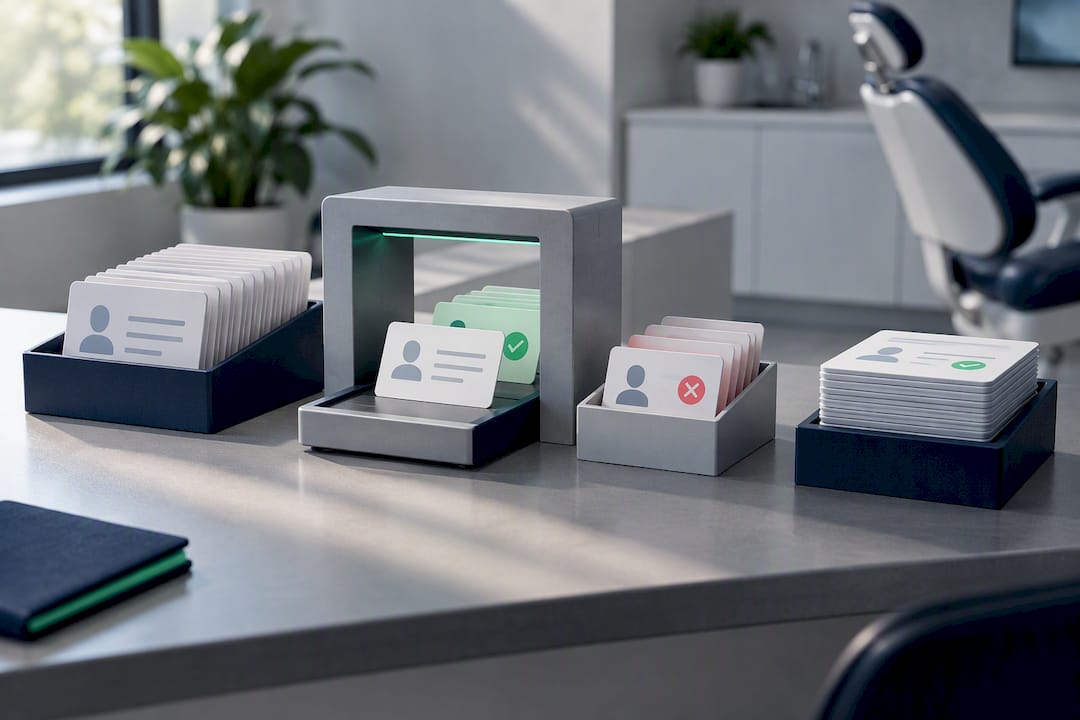
After importing, three checks should always be made: the number of imported records must match that of the original file, mandatory fields must all be filled in, and no duplicate patients with the same tax code should appear.
The most frequent errors have quick solutions:
Unreadable characters: almost always an encoding issue, solvable by re-exporting the file in UTF-8.
Misaligned columns: usually depends on the wrong separator (comma versus semicolon).
Unrecognized dates: the management software expects a format different from that of the file, for example YYYY-MM-DD instead of DD/MM/YYYY.
Invalid tax codes: often due to hidden spaces or lowercase letters not converted.
If the import generates too many errors, many management systems allow a rollback that undoes the entire operation without touching existing data. A tip: always work in a test environment or import a small isolated batch first: identifying an error on 30 records is manageable, identifying it on 3,000 is much less so.
When it is better to request assisted migration instead of doing it yourself
Doing it on your own works well with small and tidy archives. With thousands of patients, complex integrations, or an appointment history to keep intact, the risk of error grows faster than the time you think you are saving. In those cases, the most sensible choice is to ask for direct support from the provider before launching any final import.
— Matteo
Free migration with Treatbase: import records without risks
Some software eliminates the most fragile point of every migration: human error in field mapping. Data migration can be free and managed directly by the team, with no additional costs or technical skills required from the practice.

Before starting any transfer, it is worth consulting the practical guide to patient management, which explains how records are structured once imported, and the calendar and new patient section to understand how appointments and records remain connected after the transition. Those who also manage billing and payments can take a look at the documentation on payments to verify that patients' financial data is transferred correctly. If the practice manages large volumes or multiple locations, contacting Treatbase support before proceeding allows you to plan the migration without stopping clinical activity even for a single day. The complete product sheet is available on the Treatbase page.
Sources
To build the correct import file, consult the official Doctolib guide on calendar importing, the Zendesk help center best practices, and Finson's documentation on dental practice management software.
Frequently Asked Questions
What file format is needed to import patient records?
CSV and Excel (.xlsx) are the formats accepted by most dental management software. CSV with UTF-8 encoding is generally more stable for large volumes of records, as indicated in the documentation on software for dentists.
Which record fields are mandatory for import?
First name, last name, tax code, and date of birth are the minimum fields required almost everywhere. Phone, email, and address complete the record and are useful for communications and automatic reminders to patients.
How do you test an import before doing it for all patients?
You upload a subset of 10-50 records and check the preview before proceeding with the full import. This step identifies mapping or formatting errors without compromising the entire patient database.
Does Treatbase offer assistance for importing records?
Yes, Treatbase manages data migration free of charge, with no additional costs for the practice. The procedure involves transferring existing records to the platform, as described in the patient management guide.
What to do if the import generates errors on tax codes?
In most cases, it is due to hidden spaces or lowercase letters not converted to uppercase. By correcting the format in the original file and repeating the test import, the error is usually resolved without having to manually intervene on each record.