Integrating Google Calendar for Dentists: Options That Actually Work
Discover how to connect Google Calendar to your dental practice: compare integrated booking systems, connectors, and APIs to manage appointments and synchronization.

Integrating Google Calendar for Dentists: The Options That Really Work
No-code connectors and API integrations remain necessary only for complex workflows or two-way synchronization.
In brief:
A personal or Business Starter account allows for a free booking page, while email verification and Stripe payments require Workspace Business Standard or higher.
With Zapier, check time zones, cancellations, and duplicates, then keep the workflow in testing for a week before abandoning manual entry.
APIs must request limited OAuth permissions, log calls, and initiate a full sync when token expiration returns an HTTP 410 error.
To protect health data, limit events to availability or encrypted identifiers and set external sharing to free/busy only, without clinical notes.
Before activation, run a full backup and test cancellations, reschedules, and double bookings, preparing a fallback plan to temporarily return to manual entry in case of an issue.
TreatbaseSimplifies practice managementTreatbase uses voice AI and includes automated patient reminders, alongside tools for invoicing and procedures.Discover Treatbase
Table of Contents
Native, no-code connectors, or API: Which integration to choose
How to set up an appointment schedule in Google Calendar
How to connect Calendar and practice management software with a no-code connector
OAuth, scopes, and incremental sync: What you need to know
Privacy and GDPR: A checklist to protect sensitive data during synchronization
Implementation and testing checklist before going live
Why Treatbase simplifies calendar integration
When it makes sense to handle the integration in-house
Request a Treatbase demo and get started with free migration
Frequently Asked Questions
Sources
Native, no-code connectors, or API: Which integration to choose
The three approaches do not compete with each other; they serve different needs. The Appointment schedule feature in Google Calendar is sufficient when the practice has few practitioners and simply wants to let patients book an available slot, without connecting an external management system.
No-code connectors like Zapier speed things up when you need to automate simple actions—such as creating an event each time an appointment is confirmed in the practice management software—without writing code.
API integration becomes necessary when the practice requires true two-way synchronization—meaning updates flow in both directions between the calendar and management software, complete with handling for conflicts, time zones, and complex statuses.
To make the right choice, consider:
How many practitioners and locations the practice manages each day.
How critical the privacy of data passing through the calendar is.
Whether reminder automation is needed or simple slot visibility is enough.
How many hours per month front desk staff currently spend on manual appointment entry.
How to set up an appointment schedule in Google Calendar
Before getting started, you need a personal Google account or Google Workspace: premium features, such as patient email verification or integrated Stripe payments, require Workspace Business Standard plans or higher, while a personal account or Business Starter allows you to create a single booking page at no additional cost as indicated by Google Workspace.
Configuration, explained in the official Google Calendar guide, can only be done via a browser, not from the mobile app:
Open Google Calendar on a computer and select "Create," then "Appointment schedule."
Set slot duration, weekly availability, and the calendar where events will be published.
Configure the booking form by choosing required fields for the patient, such as name, phone number, and reason for visit.
Enable email verification if available in your Workspace plan to reduce fake bookings.
Publish the page and share the link on your practice website or via text to patients.
To avoid overlaps between multiple dentists, you can include co-hosts' calendars on the same booking page, ensuring the slot appears busy everywhere as soon as it is booked.
A tip: always block out lunch break times as "busy" events before publishing the page, otherwise patients will be able to book during that window.
How to connect Calendar and practice management software with a no-code connector
A typical Zapier workflow starts with a trigger in the management software, such as "new appointment confirmed," and generates an action in Google Calendar like "create event." This works well for practices looking to immediately view appointments on a shared calendar without modifying code.
Before turning the Zap on in production, it is best to check a few points:
Map date, time, and time zone fields accurately, as an alignment error can result in events offset by several hours.
Verify how appointment status is handled, to avoid a situation where a cancellation in the management software leaves the event active on Calendar.
Test duplicate creation when two triggers overlap, such as a quick edit followed by a confirmation.
Simulate a full day of appointments before going live, making sure each event appears only once.
No-code connectors have a limitation: they handle single actions well, but struggle with complex logic like resolving conflicts between two sources updating in parallel.
A tip: keep the connector running in test mode for a full week before turning off manual entry, so you can compare both workflows without risk.
OAuth, scopes, and incremental sync: What you need to know
Anyone developing or configuring an API integration must start with the correct OAuth scopes. Google recommends requesting the most limited scopes possible, such as calendar.events, rather than scopes allowing destructive operations across the entire calendar: this minimizes data exposure should a token become compromised.
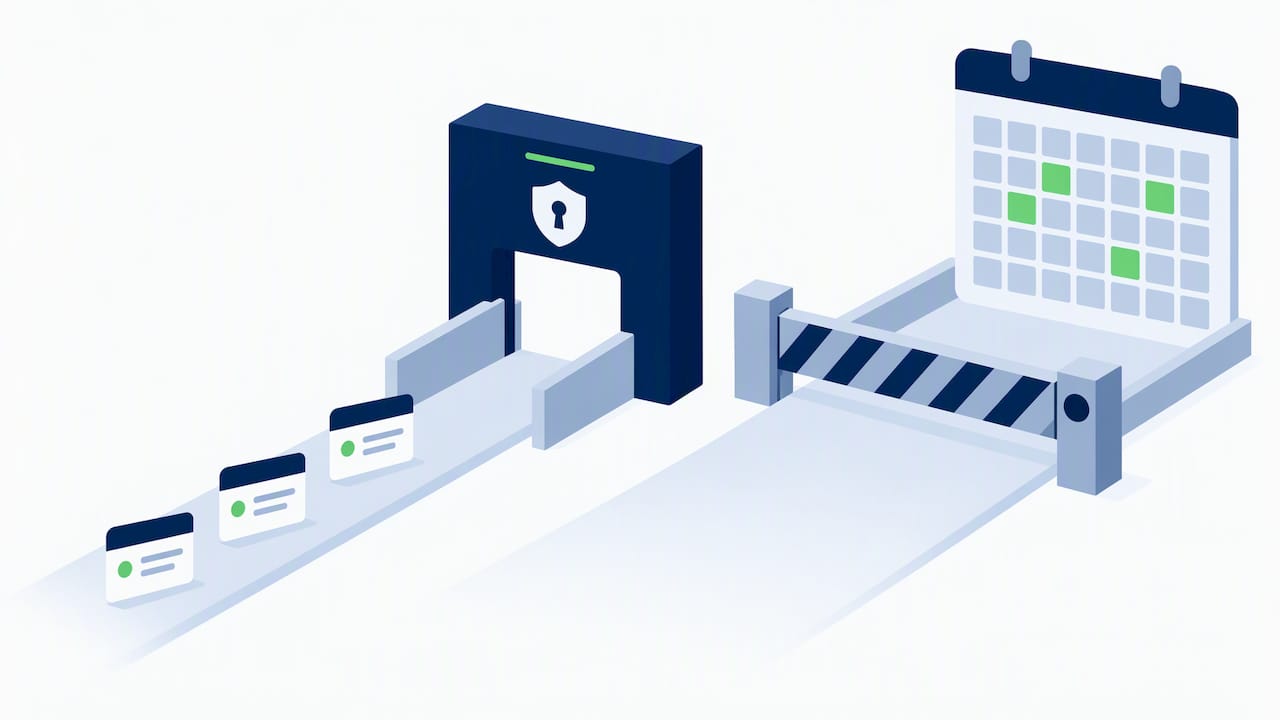
The recommended synchronization model involves an initial full sync step followed by incremental updates via nextSyncToken, as described in the Google Calendar developer documentation. When the token expires, the server responds with an HTTP 410 error and the integration must execute a new full sync to re-align.
Several best practices help keep the integration stable over time:
Have each user authenticate with their own individual account, not a shared account.
Log every API call in an accessible audit log to trace potential discrepancies.
Explicitly handle the 410 error with an automatic re-sync mechanism.
Schedule periodic checks comparing event counts between the calendar and management software.
Incremental synchronization and token handling are often the primary cause of integration failures, according to Google technical documentation: properly designing recovery from a 410 error makes the difference between a robust integration and one that falls out of sync every few weeks.
Privacy and GDPR: A checklist to protect sensitive data during synchronization
Health data falls under special categories of personal data under the GDPR, requiring enhanced security measures and storage limited to necessary periods, as detailed in Google Workspace data protection materials. Before connecting your calendar to your management software, check these points:
Sync only "free/busy" status or encrypted identifiers, avoiding writing diagnoses or clinical notes in events.
Verify that the management software vendor has signed a Data Processing Amendment with clear terms on data retention and deletion.
Consider a DPIA when the integration processes significant volumes of health data or introduces a new processor; Google provides dedicated templates for this assessment through Google Cloud.
Set external calendar sharing to "see only free/busy" at the Workspace administrator level for accounts handling patient data.
A tip: treat every calendar event as if it could be seen by a patient or external partner: if it contains clinical details, it shouldn't be there.
Implementation and testing checklist before going live
Before launching any integration in production, it is best to follow a verification checklist to minimize the risk of lost appointments or duplicates.
Perform a complete backup of both the calendar and management software database prior to making any changes.
Map every field between the two systems, verifying names, times, and time zones.
Configure shared resources, such as operating rooms or dental chairs, before linking practitioner calendars.
Test critical scenarios: cancellations, last-minute reschedules, and double bookings on the same slot.
Phase | Typical Owner | Goal |
|---|---|---|
Initial setup | System administrator or office manager | Connect accounts and define mapping rules |
End-to-end testing | Front desk or technical staff | Verify duplicates, cancellations, and multi-practitioner conflicts |
Go-live approval | Practice owner or manager | Confirm that critical workflows operate without errors |
Post go-live monitoring | Technical staff or software vendor | Track unsynced events and trigger a rollback if necessary |
Following activation, monitor any events that fail to sync within the day and maintain a ready rollback plan to temporarily revert to manual entry if issues arise.
Why Treatbase simplifies calendar integration
We manage appointments, reminders, and clinical documentation in a unified platform designed to eliminate the manual steps that typically complicate external calendar synchronization. Key advantages for practices looking to connect calendar and management software without surprises include:
We use technological tools to facilitate clinical note charting, reducing manual transcription that often introduces errors into appointment schedules as well.
We deliver automated patient reminders tied to schedule appointments, cutting down on manual confirmation tasks for administrative staff.
Data migration can be handled at no additional cost for practices switching from another system.
If you want to see how these tools integrate with your current schedule, we can walk you through the entire workflow in a dedicated technical demo.
When it makes sense to handle the integration in-house
Building in-house makes sense when the practice has internal technical staff and low volume, where direct control outweighs maintenance time. As the practice grows, operates across multiple locations, or handles sensitive health data, relying on management software that already includes built-in synchronization and compliance reduces the risk of costly mistakes.
— Matteo
Request a Treatbase demo and get started with free migration
Choosing practice management software that already integrates a calendar, reminders, and compliance spares you from having to build and maintain a custom integration. You save the time staff would otherwise spend troubleshooting connectors and handling sync errors.
Request a demo to see how we manage appointments and reminders within a single workflow.
Get started with free data migration, without interrupting your practice's day-to-day schedule.
Find full offer details on the page dedicated to Treatbase dental practice management software.
Frequently Asked Questions
How do I use Google Calendar on desktop?
Google Calendar is accessed directly via browser at calendar.google.com, without requiring a separate desktop application. On Windows or macOS, you can add the calendar as a browser shortcut or use the official app where available.
What is the best practice management software for a dental clinic?
There is no single best software for everyone: the choice depends on how much you want to automate clinical charts, billing, and reminders versus using standalone tools. Software like Treatbase focuses on voice AI and free data migration to bring these processes together into a single platform.
Is Google Calendar Appointment schedule free?
A basic booking page is available at no extra cost with a personal Google account or Business Starter. Advanced features, like email verification or integrated payments, require Google Workspace Business Standard plans or higher.
What happens if the sync token expires?
When the nextSyncToken expires, the Google Calendar API returns an HTTP 410 error and the integration must perform a new full sync to fully re-align, according to official developer documentation. Handling this scenario in your code prevents appointments from remaining out of sync for days.
Do I need a DPIA to sync a calendar with patient data?
A DPIA is recommended when the integration handles significant volumes of health data or introduces a new data processor. Google offers templates and support materials for this assessment via Google Cloud.